Themes Module
The Themes module gives you a visual editor for designing your app's colors, fonts, border radius, and shadows. Once you're happy with a design, you bake it into a CSS file and ship it — no runtime overhead, no database.
The theme editor is intended for the SaaS developer/owner, not end users. You design once, apply, rebuild, and it's done.
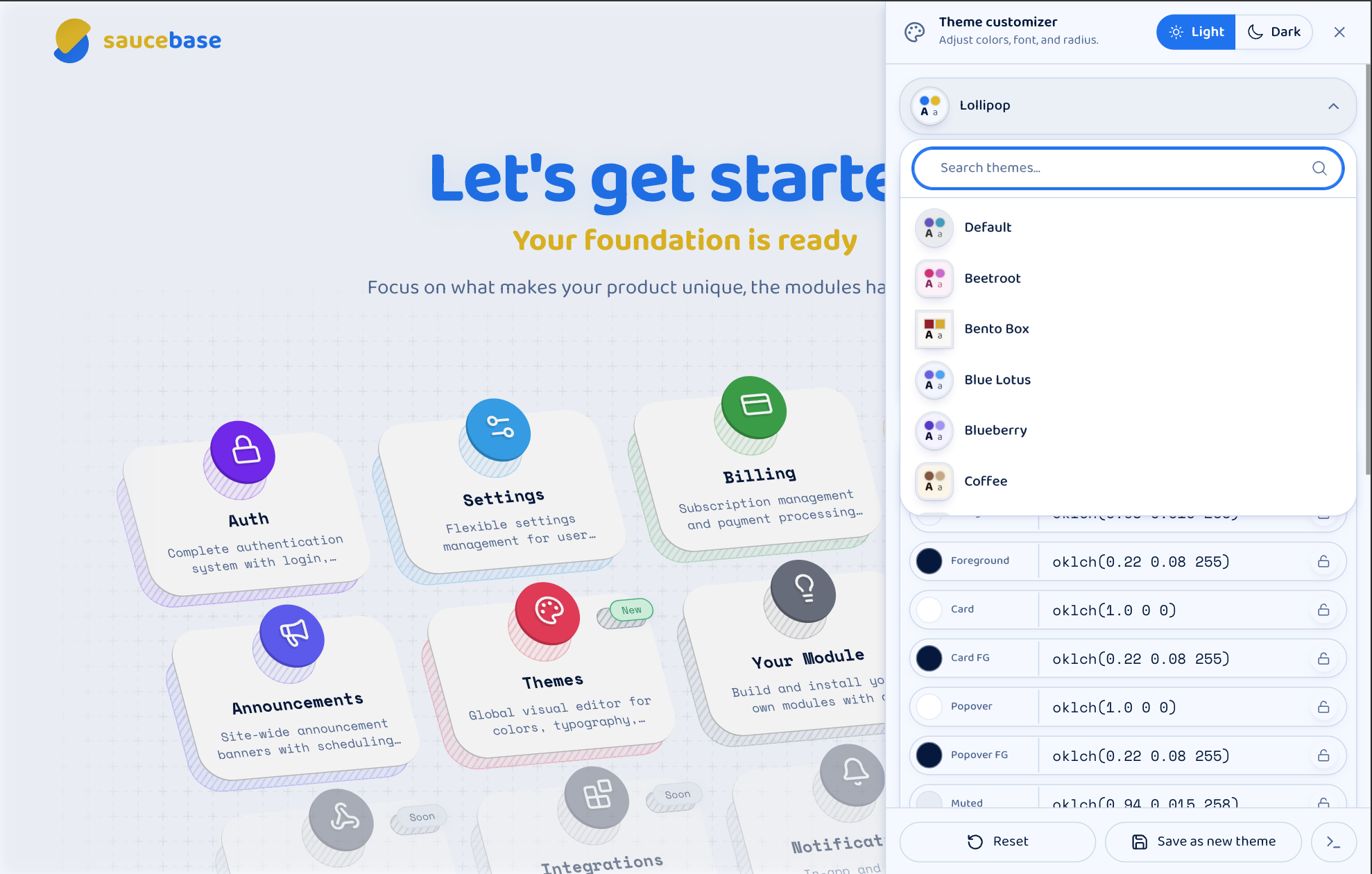
What you get
- Built-in themes — including beetroot, bento-box, blue-lotus, blueberry, coffee, hotdog, kiwi, lollipop, mango, pizza, sushi, tangerine, tomato, and the default Saucebase theme
- Visual editor (ThemePanel) — a floating panel on every page for live editing colors, fonts, border radius, and shadows
- Dark and light mode — every theme defines both; switch between them while editing
- Per-field mode sync — lock a field to keep the same value in both modes, or edit each mode independently
- Theme picker — animated ripple transition when switching between built-in themes
- Custom themes — save your tweaks as a new named theme; edit and delete them from the panel. Custom themes are stored in
storage/app/themes/as JSON files - No database — themes are JSON files committed to your repo; the final output is baked CSS
Installation
composer require saucebase/themes
npm run build
Using the editor
After installation, a palette icon appears in the bottom-right corner of every page. Click it to open the ThemePanel.
From the panel you can:
- Pick a theme — use the theme picker at the top to switch between built-in themes. Changes preview instantly.
- Edit fields — adjust colors, fonts, border radius, and shadow settings using the controls in each group.
- Sync modes — click the lock icon on any field to keep the same value in light and dark mode. Click it again to edit them independently.
- Save your work — use the Save dropdown to update the current theme or create a new one with a custom name.
Applying a theme to your app
The editor is for designing. When you're ready to make a theme the default for your app, bake it into CSS:
php artisan saucebase:theme:apply {theme-id}
npm run build
Replace {theme-id} with the theme name, for example coffee or default. This writes the theme's CSS variables into resources/css/theme.css, which Vite includes in your build. Every user gets the baked theme without any JavaScript overhead.
To see available themes:
ls modules/themes/resources/themes/
Disabling the editor
The ThemePanel is enabled by default. Set THEMES_ENABLED=false in your .env to hide it — typically once you've settled on a theme and are ready for production.
THEMES_ENABLED=false
When disabled, the panel is not rendered and no theme data is sent to the frontend.
Testing
php artisan test --testsuite=Modules --filter=Themes
npx playwright test --project="@Themes*"